Important Notice
1. After First Login Change your Password Immediately. 2. After First Login Change your Email Immediately to receive Ticket Status. 2. Always Upload Correct Information and record of Ticket data.
User Manual – Web Portal
Open any Internet Browers
Write in search Helpdesk.sie.com.pk or sundarestate.odoo.com and enter. SIE Helpdesk will be on your screen
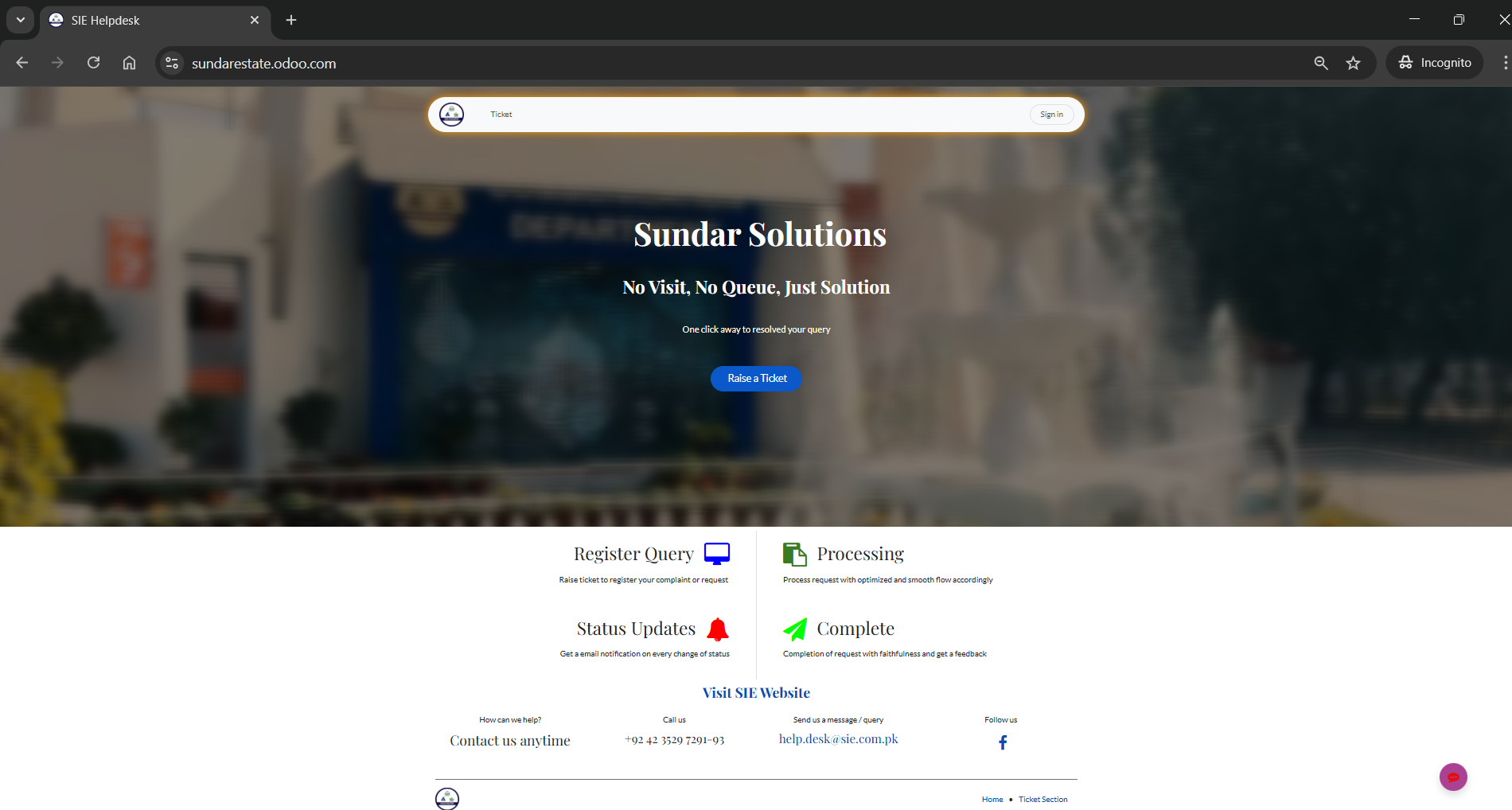
Login
1. Click on Sign In 2. Enter your Username 3. Username will be your Application Number (a). Application-Number@sie.com (b). E.g (100@sie.com) 4. Enter your Password (a). Default password123 5. Tap to Log In.
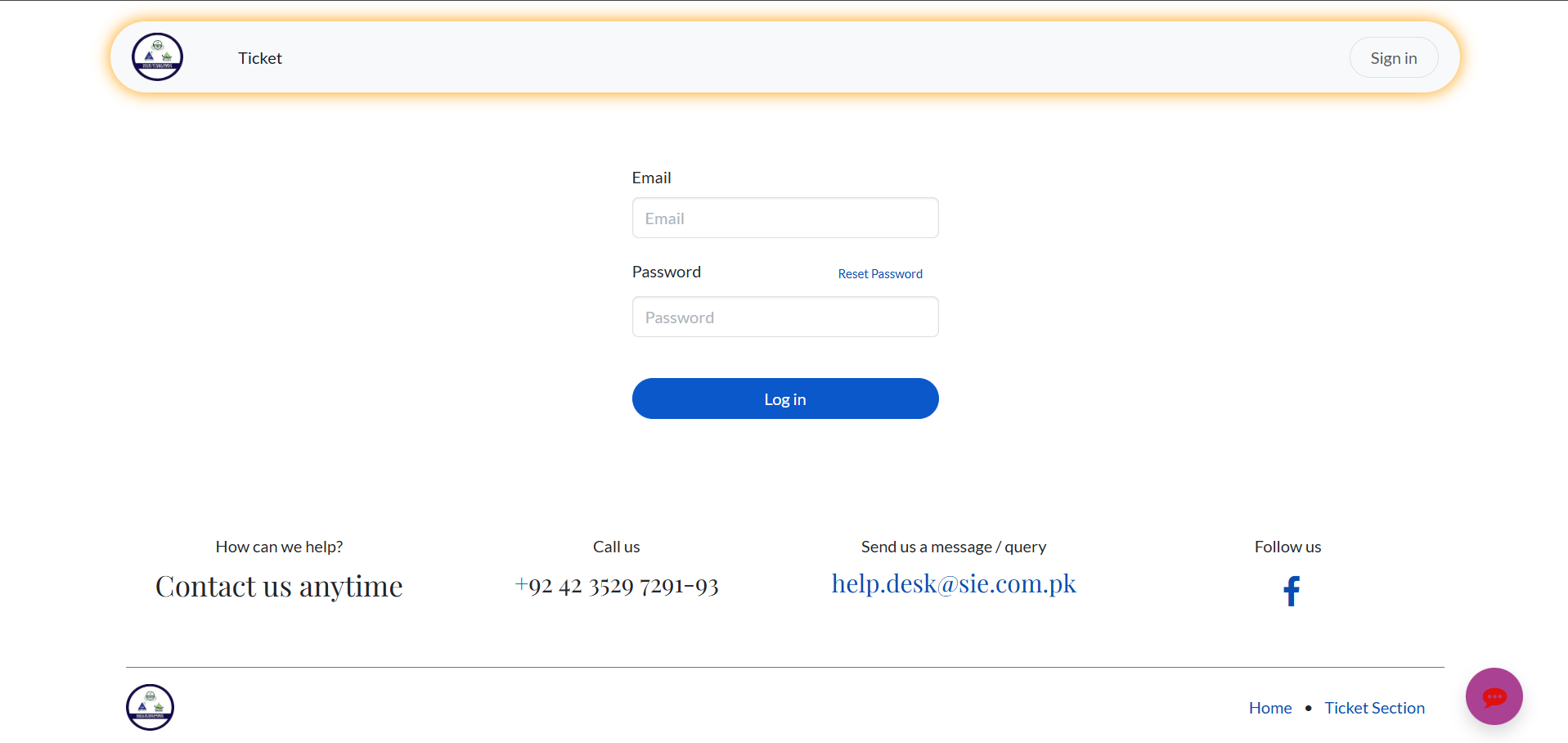
Helpdesk Dashboard
On Dashboard check the Total, Open and Closed Tickets. On your Left Side Section 1. Ticket Section. (a). You can Genertar a Ticket (b). You can check your past Tickets Records. 2. Connection and Security (a). You can Change your Password On your Right Side Section. 1. Edit Information. (a). You can update your Information e.g (Email, Address, Phone Number & etc).

User Manual – Mobile/Google Play Store
Download Odoo App
Open Google Play Store, search for Odoo and tap Install.
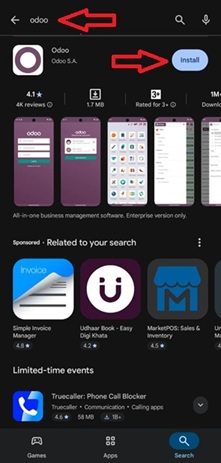
Open Odoo App
Tap the Odoo icon from your mobile applications list.

Login
1. Enter Server Name sundarestate.odoo.com
2. Enter your Username
3. Username will be your Application Number
(a). Application-Number@sie.com
(b). E.g (100@sie.com)
4. Enter your Password
(a). Default password123
5. Tap to Log In.

Helpdesk Dashboard
On Dashboard check the Total, Open and Closed Tickets.
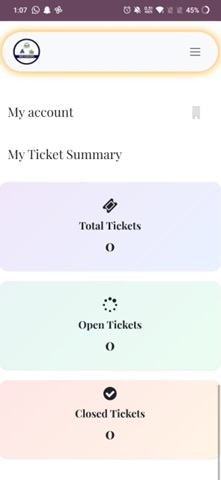
Create New Ticket
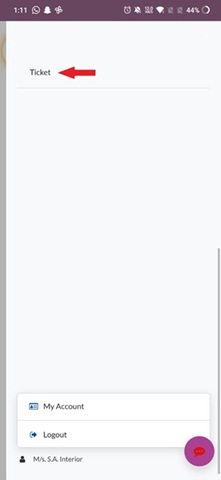
From the dashboard, tap on Right Side Bar and click on Ticket.
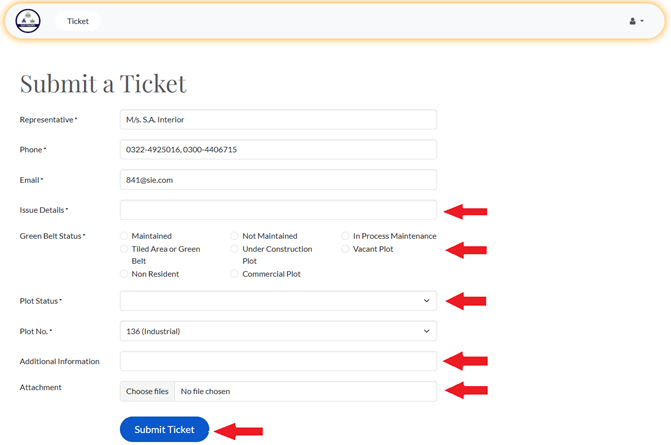
Fill Ticket Details
Enter Issue Details, select Green-Belt Status, Plot Status, and attach required documnet.
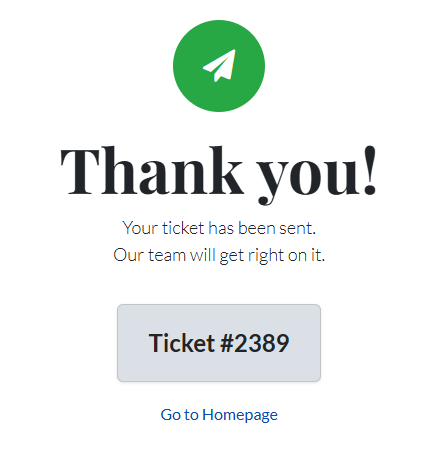
Submit Ticket
Tap Submit Ticket. Your ticket number will be generated automatically.
For Any Help
For any technical queries. Contact us on WhatsappContact Number: 0317-9998101, 0303-9761103